

Palette Manager
The Palette Manager is a dedicated workspace for your palette library - the palettes you save and reuse across every pack, kept separate from the pack-level palette in the Studio panel. It has two tabs: Library for building and organizing palettes by hand, and Generate for auto-creating color-theory palettes.
It opens large, because it’s a place to do focused palette work rather than a quick menu.
Opening it
Section titled “Opening it”In the Palette section of the Studio panel, open the generator
menu (⋯) and choose Palette Manager. It’s the first item in
the menu.
Library tab
Section titled “Library tab”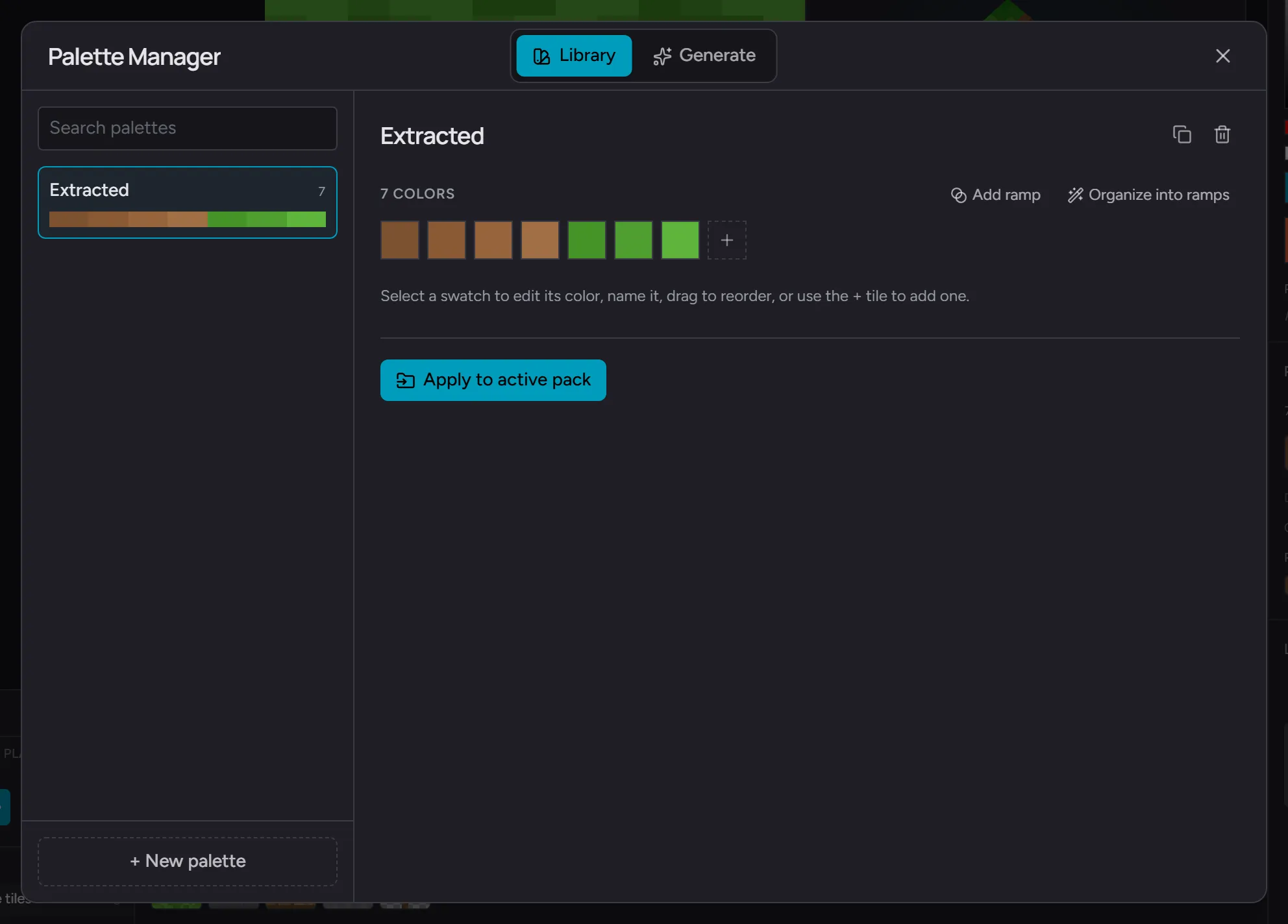
The Library tab is your full palette library, open to every user. It’s a two-pane layout:
- Left: a list of every palette in your library, each shown with its name, a strip of its colors, and a swatch count. A New palette tile starts a fresh, empty palette.
- Right: an editor for the palette you’ve selected.
From the editor you can:
- Rename the palette
- Add, remove, and reorder swatches (drag to reorder)
- Duplicate a palette as a starting point for a variant
- Delete a palette you no longer need
- Apply to the active pack - copies the palette onto the pack you’re working in
Applying a palette to a pack makes a copy. Editing the library palette afterward does not change packs you’ve already applied it to, so you can keep refining a library palette without disturbing finished work.
Generate tab
Section titled “Generate tab”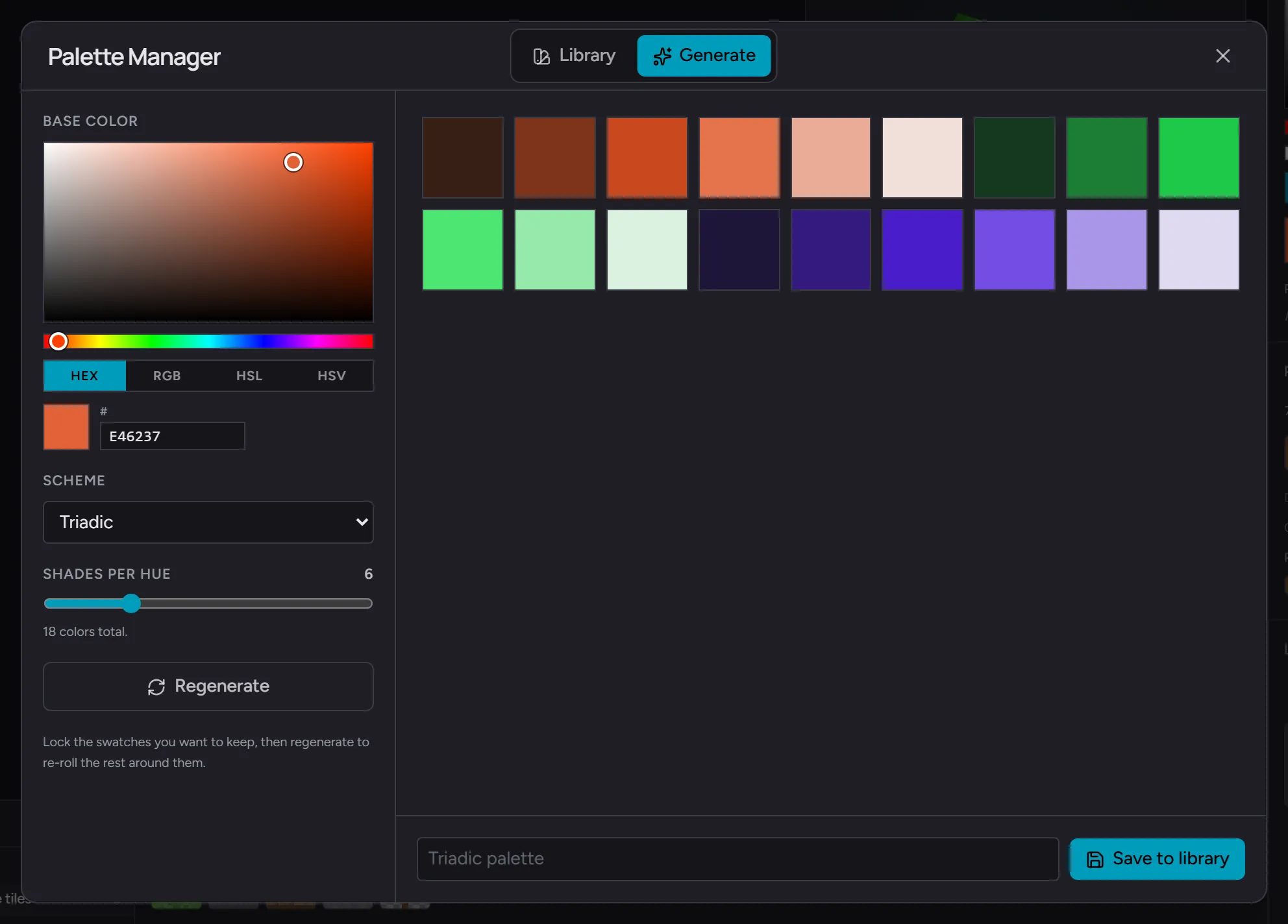
The Generate tab builds a palette from a base color and a color-theory scheme, then expands each hue into a pixel-art ramp of light-to-dark shades.
- Pick a base color. It starts from your current brush color.
- Choose a scheme: Monochromatic, Complementary, Analogous, Split-complementary, Triadic, or Tetradic.
- Set shades per hue with the slider. One shade gives you just the base scheme colors; higher values fan each hue into a ramp.
- Lock the swatches you like by clicking them, then Regenerate to re-roll everything that isn’t locked. Lock and regenerate as many times as you want until the set feels right.
- Save to library - names and stores the palette, then jumps you to the Library tab with the new palette selected.
Your palette library is saved in your browser, alongside your packs.
Related
Section titled “Related”- Palette section - the right-panel palette and the menu the Manager opens from
- Palettes and the lock workflow